Screen Wellness
How to Limit Screen Time on iPhone: The Full Guide for Better Digital Habits
You unlock your iPhone to check one notification. Somehow, thirty minutes later, you're still scrolling through social media, watching videos, and reading articles you don't even care about. You look up feeling drained, wondering where that time went and why you can't seem to put your phone down.
Or maybe you're watching your child spend hours glued to their iPhone, ignoring homework, family time, and the world around them. You've asked them to stop, but the pull of games, messages, and videos seems impossible to resist.
The good news? Your iPhone has powerful built-in tools specifically designed to help you take control of screen time, whether for yourself or your children. Apple's Screen Time feature offers comprehensive controls that actually work when used consistently.
This guide walks you through every step of setting up and using iPhone's screen time management tools, from basic app limits to comprehensive parental controls.
You unlock your iPhone to check one notification. Somehow, thirty minutes later, you're still scrolling through social media, watching videos, and reading articles you don't even care about. You look up feeling drained, wondering where that time went and why you can't seem to put your phone down.
Or maybe you're watching your child spend hours glued to their iPhone, ignoring homework, family time, and the world around them. You've asked them to stop, but the pull of games, messages, and videos seems impossible to resist.
The good news? Your iPhone has powerful built-in tools specifically designed to help you take control of screen time, whether for yourself or your children. Apple's Screen Time feature offers comprehensive controls that actually work when used consistently.
This guide walks you through every step of setting up and using iPhone's screen time management tools, from basic app limits to comprehensive parental controls.
You unlock your iPhone to check one notification. Somehow, thirty minutes later, you're still scrolling through social media, watching videos, and reading articles you don't even care about. You look up feeling drained, wondering where that time went and why you can't seem to put your phone down.
Or maybe you're watching your child spend hours glued to their iPhone, ignoring homework, family time, and the world around them. You've asked them to stop, but the pull of games, messages, and videos seems impossible to resist.
The good news? Your iPhone has powerful built-in tools specifically designed to help you take control of screen time, whether for yourself or your children. Apple's Screen Time feature offers comprehensive controls that actually work when used consistently.
This guide walks you through every step of setting up and using iPhone's screen time management tools, from basic app limits to comprehensive parental controls.


Do You Know Your Whole Life Screen Time ?
What I am going to cover
Why Limit Screen Time on iPhone?
How to Access Screen Time Settings
Setting App Limits
Using Downtime for Breaks
Enabling Parental Controls for Kids
Viewing Screen Time Reports
Tips for Maintaining Healthy Screen Habits
Troubleshooting Common Issues
What I am going to cover
Why Limit Screen Time on iPhone?
How to Access Screen Time Settings
Setting App Limits
Using Downtime for Breaks
Enabling Parental Controls for Kids
Viewing Screen Time Reports
Tips for Maintaining Healthy Screen Habits
Troubleshooting Common Issues
What I am going to cover
Why Limit Screen Time on iPhone?
How to Access Screen Time Settings
Setting App Limits
Using Downtime for Breaks
Enabling Parental Controls for Kids
Viewing Screen Time Reports
Tips for Maintaining Healthy Screen Habits
Troubleshooting Common Issues
What to remember
Screen Time is built into iOS 12 and later on all iPhones, providing free, comprehensive controls without third-party apps.
App Limits restrict daily usage for specific apps or categories, with passcode protection preventing easy overrides.
Downtime schedules block apps during specific hours like bedtime or family time, with customizable always-allowed apps.
Parental controls through Family Sharing let you manage children's devices remotely including content restrictions and communication limits.
Screen Time passcodes are essential for making limits effective, especially with children or for personal accountability.
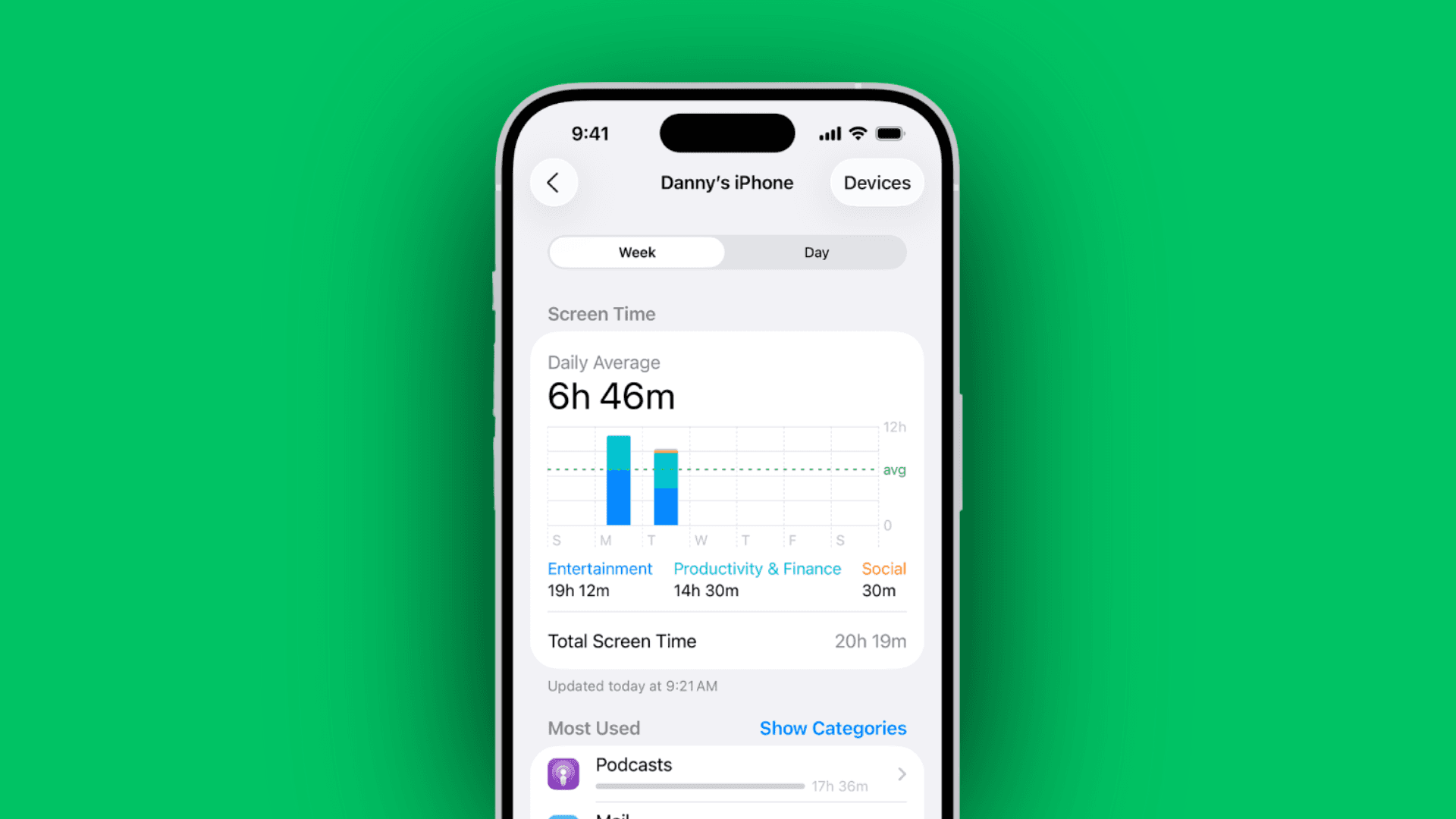
Usage reports provide detailed insights into screen time patterns, most-used apps, pickups, and notification frequency.
Combine Screen Time with Focus Modes, grayscale, and phone-free zones for comprehensive digital wellbeing strategies.
Common issues like bypassed limits can be fixed by enabling "Block at End of Limit" and setting proper restrictions.
Balance is the goal, not elimination because phones are useful tools when used intentionally rather than compulsively.
What to remember
Screen Time is built into iOS 12 and later on all iPhones, providing free, comprehensive controls without third-party apps.
App Limits restrict daily usage for specific apps or categories, with passcode protection preventing easy overrides.
Downtime schedules block apps during specific hours like bedtime or family time, with customizable always-allowed apps.
Parental controls through Family Sharing let you manage children's devices remotely including content restrictions and communication limits.
Screen Time passcodes are essential for making limits effective, especially with children or for personal accountability.
Usage reports provide detailed insights into screen time patterns, most-used apps, pickups, and notification frequency.
Combine Screen Time with Focus Modes, grayscale, and phone-free zones for comprehensive digital wellbeing strategies.
Common issues like bypassed limits can be fixed by enabling "Block at End of Limit" and setting proper restrictions.
Balance is the goal, not elimination because phones are useful tools when used intentionally rather than compulsively.
What to remember
Screen Time is built into iOS 12 and later on all iPhones, providing free, comprehensive controls without third-party apps.
App Limits restrict daily usage for specific apps or categories, with passcode protection preventing easy overrides.
Downtime schedules block apps during specific hours like bedtime or family time, with customizable always-allowed apps.
Parental controls through Family Sharing let you manage children's devices remotely including content restrictions and communication limits.
Screen Time passcodes are essential for making limits effective, especially with children or for personal accountability.
Usage reports provide detailed insights into screen time patterns, most-used apps, pickups, and notification frequency.
Combine Screen Time with Focus Modes, grayscale, and phone-free zones for comprehensive digital wellbeing strategies.
Common issues like bypassed limits can be fixed by enabling "Block at End of Limit" and setting proper restrictions.
Balance is the goal, not elimination because phones are useful tools when used intentionally rather than compulsively.
Why Limit Screen Time on iPhone?
Sleep quality suffers when you scroll before bed. Blue light keeps your brain activated when it should wind down.
Productivity decreases with constant checking. Every notification breaks your focus.
Mental health deteriorates with excessive social media. Comparison culture and FOMO create anxiety.
Physical health is affected by sedentary time and poor posture.
Relationships suffer when you're physically present but mentally absent.
How to Access Screen Time Settings
Open Settings → Screen Time → Turn On Screen Time → choose "This is My iPhone".
Setting a Passcode
Tap "Use Screen Time Passcode" → enter a four-digit code → confirm → add your Apple ID for recovery.
Choose something not obvious. For accountability, have someone you trust set it.
Setting App Limits
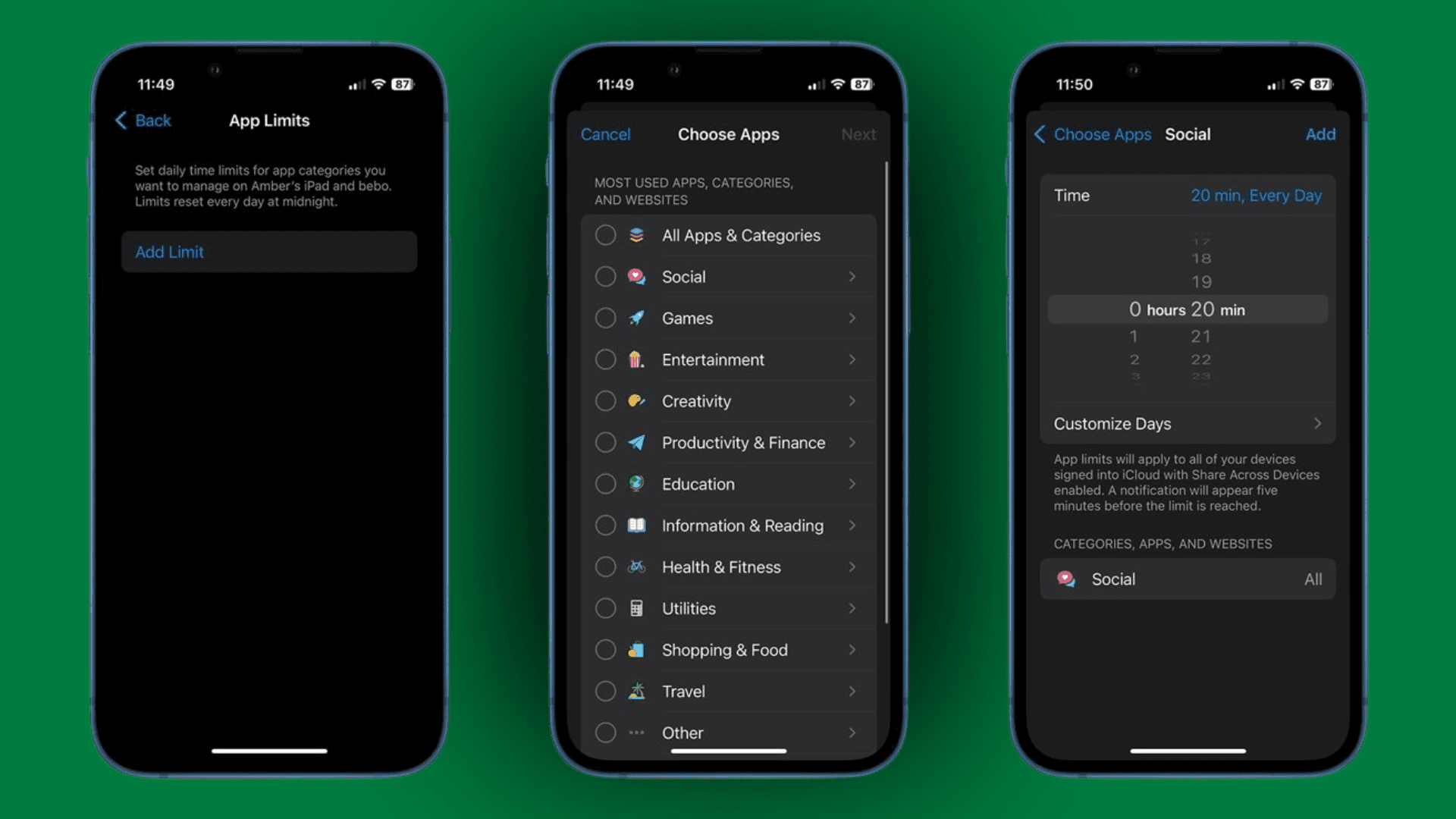
Limits restrict how long you can use apps daily.
Settings → Screen Time → App Limits → Add Limit
Choose a category (Social, Games, Entertainment) → set time limit → tap Add.
For specific apps: expand categories and select individual apps → set limit → save.
What Happens at the Limit
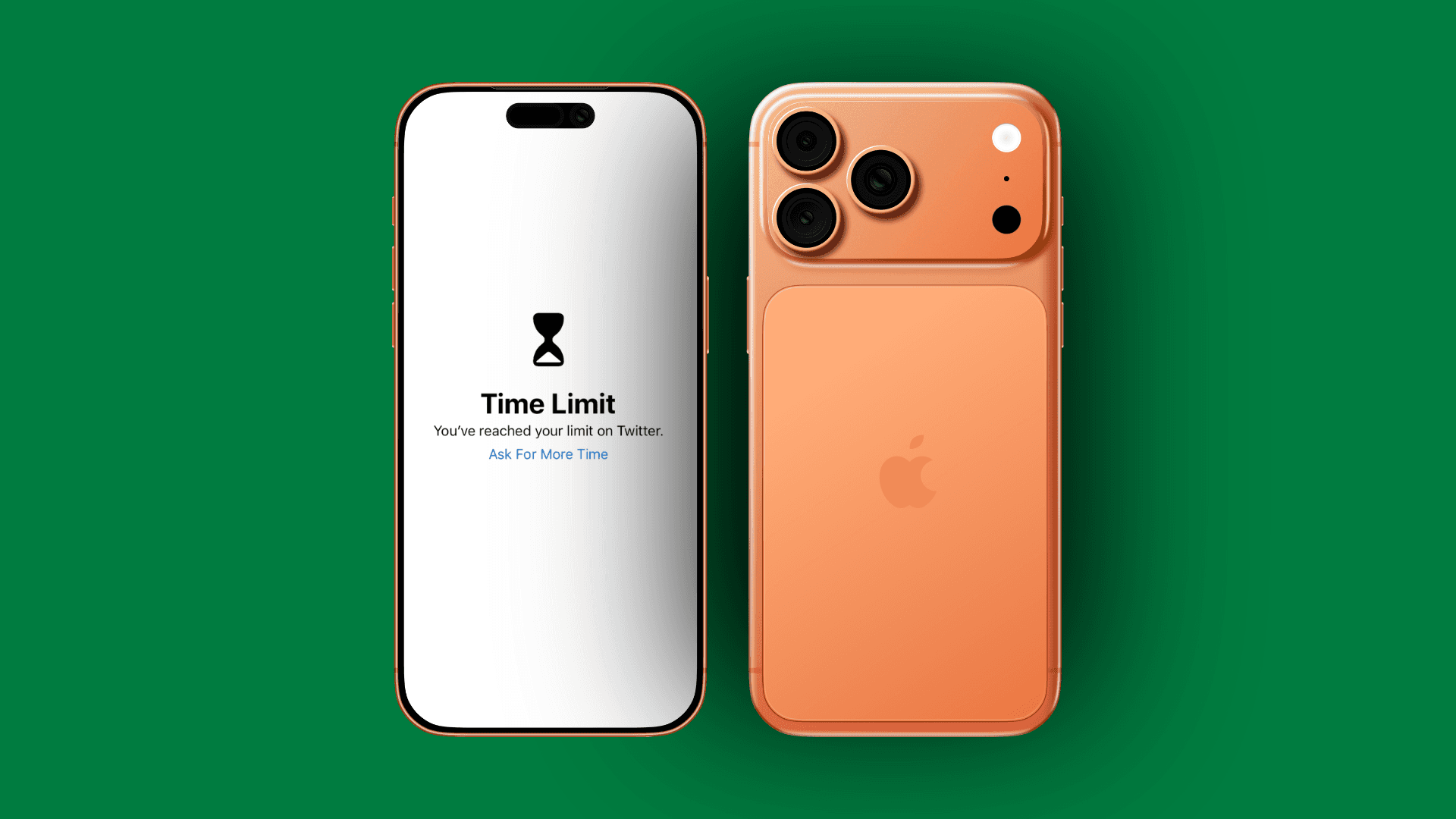
A screen blocks the app: "You've reached your limit."
Tap "Ignore Limit" (requires passcode) or OK to stop.
Toggle "Block at End of Limit" to prevent easy overrides.
Using Downtime For Breaks
Downtime blocks apps during specific hours.
Settings → Screen Time → Downtime → toggle on → set times (e.g., 9pm to 7am).
Always Allowed section lets you choose which apps work during Downtime (Phone, Messages, etc.).

Enabling Parental Controls for Kids
Setting Up Through Family Sharing
Settings → Screen Time → tap your child's name under Family → Turn On Screen Time.
Content Restrictions
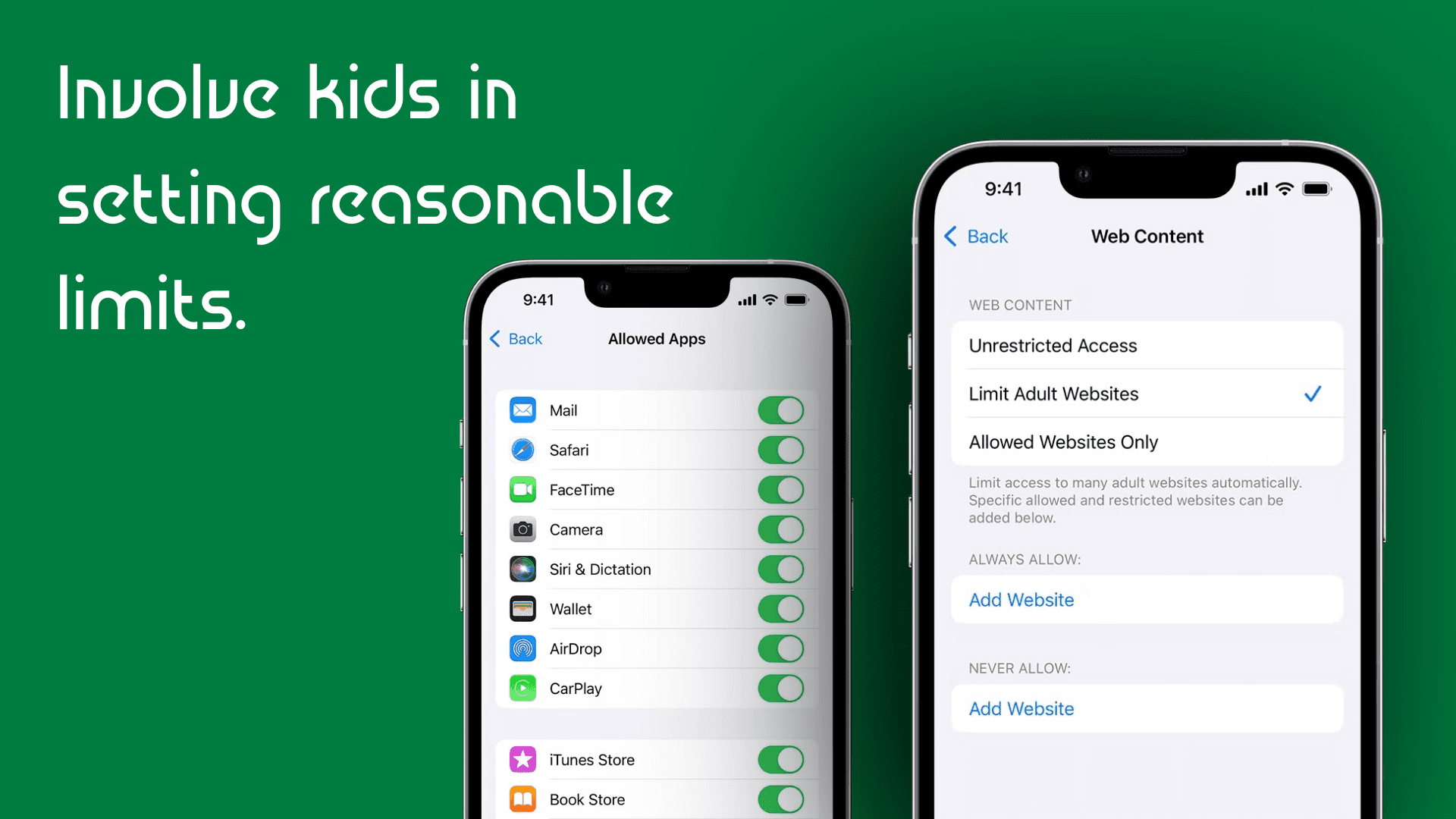
Content & Privacy Restrictions provides controls:
Purchases: Prevent app installs and in-app purchases without approval.
Allowed Apps: Hide Safari, Camera, or App Store.
Content: Block explicit material, set age ratings.
Web Content: Limit adult websites or allow only approved sites.
Communication Limits
Control who your child can contact during allowed time and downtime.
Choose "Contacts Only" or "Specific Contacts."
Managing Requests
When kids hit limits, they can request more time. You'll get a notification to approve or decline.
Viewing Reports
Settings → Screen Time → See All Activity
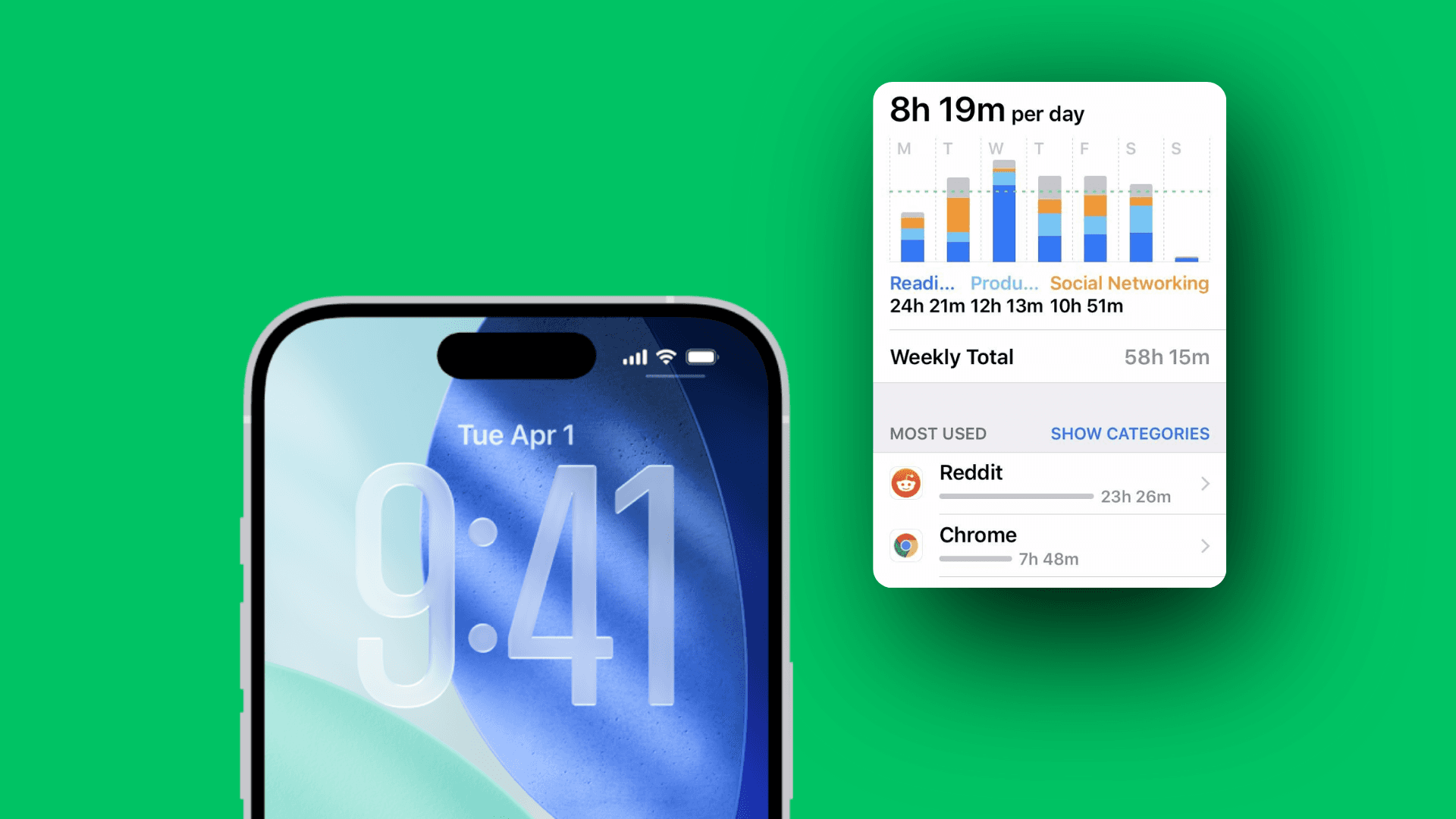
Review total screen time, most used apps, pickups, and notifications.
This awareness often motivates behavior change.
Tips for Maintaining Healthy Screen Habits
Use Focus Modes to filter notifications during work or sleep.
Enable Grayscale (Settings → Accessibility → Display → Color Filters) to make your phone less appealing.
Remove apps from home screen to create friction.
Charge outside bedroom to prevent late-night scrolling.
Create phone-free times like meals and first hour after waking.
Model behavior you want to see, especially with kids.
Troubleshooting Common Issues
Limits not working? Enable "Block at End of Limit" and verify passcode is set.
Forgot passcode? Settings → Screen Time → Change Passcode → Forgot Passcode → enter Apple ID.
Kids bypassing controls? Restrict time zone changes: Content & Privacy → Location Services → System Services → Setting Time Zone → Don't Allow.
Incorrect data? Turn Screen Time off and on, or check if "Share Across Devices" is combining multiple devices.
Why Limit Screen Time on iPhone?
Sleep quality suffers when you scroll before bed. Blue light keeps your brain activated when it should wind down.
Productivity decreases with constant checking. Every notification breaks your focus.
Mental health deteriorates with excessive social media. Comparison culture and FOMO create anxiety.
Physical health is affected by sedentary time and poor posture.
Relationships suffer when you're physically present but mentally absent.
How to Access Screen Time Settings
Open Settings → Screen Time → Turn On Screen Time → choose "This is My iPhone".
Setting a Passcode
Tap "Use Screen Time Passcode" → enter a four-digit code → confirm → add your Apple ID for recovery.
Choose something not obvious. For accountability, have someone you trust set it.

Setting App Limits
Limits restrict how long you can use apps daily.
Settings → Screen Time → App Limits → Add Limit
Choose a category (Social, Games, Entertainment) → set time limit → tap Add.
For specific apps: expand categories and select individual apps → set limit → save.
What Happens at the Limit
A screen blocks the app: "You've reached your limit."
Tap "Ignore Limit" (requires passcode) or OK to stop.
Toggle "Block at End of Limit" to prevent easy overrides.

Using Downtime For Breaks
Downtime blocks apps during specific hours.
Settings → Screen Time → Downtime → toggle on → set times (e.g., 9pm to 7am).
Always Allowed section lets you choose which apps work during Downtime (Phone, Messages, etc.).

Enabling Parental Controls for Kids
Setting Up Through Family Sharing
Settings → Screen Time → tap your child's name under Family → Turn On Screen Time.

Content Restrictions
Content & Privacy Restrictions provides controls:
Purchases: Prevent app installs and in-app purchases without approval.
Allowed Apps: Hide Safari, Camera, or App Store.
Content: Block explicit material, set age ratings.
Web Content: Limit adult websites or allow only approved sites.
Communication Limits
Control who your child can contact during allowed time and downtime.
Choose "Contacts Only" or "Specific Contacts."
Managing Requests
When kids hit limits, they can request more time. You'll get a notification to approve or decline.
Viewing Reports
Settings → Screen Time → See All Activity
Review total screen time, most used apps, pickups, and notifications.
This awareness often motivates behavior change.

Tips for Maintaining Healthy Screen Habits
Use Focus Modes to filter notifications during work or sleep.
Enable Grayscale (Settings → Accessibility → Display → Color Filters) to make your phone less appealing.
Remove apps from home screen to create friction.
Charge outside bedroom to prevent late-night scrolling.
Create phone-free times like meals and first hour after waking.
Model behavior you want to see, especially with kids.
Troubleshooting Common Issues
Limits not working? Enable "Block at End of Limit" and verify passcode is set.
Forgot passcode? Settings → Screen Time → Change Passcode → Forgot Passcode → enter Apple ID.
Kids bypassing controls? Restrict time zone changes: Content & Privacy → Location Services → System Services → Setting Time Zone → Don't Allow.
Incorrect data? Turn Screen Time off and on, or check if "Share Across Devices" is combining multiple devices.
Why Limit Screen Time on iPhone?
Sleep quality suffers when you scroll before bed. Blue light keeps your brain activated when it should wind down.
Productivity decreases with constant checking. Every notification breaks your focus.
Mental health deteriorates with excessive social media. Comparison culture and FOMO create anxiety.
Physical health is affected by sedentary time and poor posture.
Relationships suffer when you're physically present but mentally absent.
How to Access Screen Time Settings
Open Settings → Screen Time → Turn On Screen Time → choose "This is My iPhone".
Setting a Passcode
Tap "Use Screen Time Passcode" → enter a four-digit code → confirm → add your Apple ID for recovery.
Choose something not obvious. For accountability, have someone you trust set it.

Setting App Limits
Limits restrict how long you can use apps daily.
Settings → Screen Time → App Limits → Add Limit
Choose a category (Social, Games, Entertainment) → set time limit → tap Add.
For specific apps: expand categories and select individual apps → set limit → save.
What Happens at the Limit
A screen blocks the app: "You've reached your limit."
Tap "Ignore Limit" (requires passcode) or OK to stop.
Toggle "Block at End of Limit" to prevent easy overrides.

Using Downtime For Breaks
Downtime blocks apps during specific hours.
Settings → Screen Time → Downtime → toggle on → set times (e.g., 9pm to 7am).
Always Allowed section lets you choose which apps work during Downtime (Phone, Messages, etc.).

Enabling Parental Controls for Kids
Setting Up Through Family Sharing
Settings → Screen Time → tap your child's name under Family → Turn On Screen Time.

Content Restrictions
Content & Privacy Restrictions provides controls:
Purchases: Prevent app installs and in-app purchases without approval.
Allowed Apps: Hide Safari, Camera, or App Store.
Content: Block explicit material, set age ratings.
Web Content: Limit adult websites or allow only approved sites.
Communication Limits
Control who your child can contact during allowed time and downtime.
Choose "Contacts Only" or "Specific Contacts."
Managing Requests
When kids hit limits, they can request more time. You'll get a notification to approve or decline.
Viewing Reports
Settings → Screen Time → See All Activity
Review total screen time, most used apps, pickups, and notifications.
This awareness often motivates behavior change.

Tips for Maintaining Healthy Screen Habits
Use Focus Modes to filter notifications during work or sleep.
Enable Grayscale (Settings → Accessibility → Display → Color Filters) to make your phone less appealing.
Remove apps from home screen to create friction.
Charge outside bedroom to prevent late-night scrolling.
Create phone-free times like meals and first hour after waking.
Model behavior you want to see, especially with kids.
Troubleshooting Common Issues
Limits not working? Enable "Block at End of Limit" and verify passcode is set.
Forgot passcode? Settings → Screen Time → Change Passcode → Forgot Passcode → enter Apple ID.
Kids bypassing controls? Restrict time zone changes: Content & Privacy → Location Services → System Services → Setting Time Zone → Don't Allow.
Incorrect data? Turn Screen Time off and on, or check if "Share Across Devices" is combining multiple devices.
You are not the only one asking this
How do I turn off Screen Time on iPhone?
To disable Screen Time completely, go to Settings → Screen Time → scroll to the bottom and tap "Turn Off Screen Time." If you've set a Screen Time passcode, you'll need to enter it to confirm. This removes all app limits, downtime schedules, and content restrictions immediately. Your historical usage data remains viewable but stops collecting new information. You can turn Screen Time back on anytime, but you'll need to reconfigure all settings and limits from scratch. If you're turning it off temporarily to bypass limits, consider whether that defeats the purpose of setting them in the first place.
Can I limit screen time for specific apps only?
Yes, you have granular control over individual apps. Go to Settings → Screen Time → App Limits → Add Limit. Instead of selecting an entire category, tap to expand categories and choose specific apps. You can select multiple individual apps to include in one combined time limit, or create separate limits for different apps. For example, you could limit Instagram to 20 minutes, TikTok to 15 minutes, and YouTube to 30 minutes under separate limits, or combine them all into one 60-minute "Social & Entertainment" limit. This flexibility lets you target problematic apps while leaving other apps unrestricted.
What happens when screen time limit is reached?
When you reach your daily app limit, the app displays a screen saying "Time Limit: You've reached your limit on [App Name]" with an hourglass icon. You have options to tap "OK" and close the app, or "Ignore Limit" which offers choices like "Remind Me in 15 Minutes," "Ignore Limit For Today," or "Cancel." If you've enabled "Block at End of Limit" and set a Screen Time passcode, you must enter the passcode to ignore the limit. Without a passcode, limits are suggestions rather than hard blocks. The app icon on your home screen shows an hourglass overlay during restriction periods.
Is Screen Time available on all iPhones?
Screen Time is available on iPhones running iOS 12 or later, which includes iPhone 5s and newer models released from 2013 onward. If you have an older device, check Settings → General → Software Update to see if iOS 12 or later is available for your model. Most modern iPhones run iOS 15, 16, 17, or 18, all of which include Screen Time with progressively more features in newer versions. The feature also works on iPads with iPadOS 12 or later and Macs with macOS Catalina or later, with settings syncing across devices when "Share Across Devices" is enabled.
Can I monitor my child's screen time remotely?
Yes, through Family Sharing, you can view and manage your child's Screen Time from your own device. First, add your child to your Family Sharing group (Settings → [Your Name] → Family Sharing). Then go to Settings → Screen Time on your device, scroll to the Family section, and tap your child's name. You'll see their complete usage reports and can adjust all settings including app limits, downtime schedules, content restrictions, and communication limits remotely. When your child requests more time or permission to download apps, you receive notifications on your device and can approve or deny requests immediately. This remote management works as long as both devices have internet connectivity.
You are not the only one asking this
How do I turn off Screen Time on iPhone?
To disable Screen Time completely, go to Settings → Screen Time → scroll to the bottom and tap "Turn Off Screen Time." If you've set a Screen Time passcode, you'll need to enter it to confirm. This removes all app limits, downtime schedules, and content restrictions immediately. Your historical usage data remains viewable but stops collecting new information. You can turn Screen Time back on anytime, but you'll need to reconfigure all settings and limits from scratch. If you're turning it off temporarily to bypass limits, consider whether that defeats the purpose of setting them in the first place.
Can I limit screen time for specific apps only?
Yes, you have granular control over individual apps. Go to Settings → Screen Time → App Limits → Add Limit. Instead of selecting an entire category, tap to expand categories and choose specific apps. You can select multiple individual apps to include in one combined time limit, or create separate limits for different apps. For example, you could limit Instagram to 20 minutes, TikTok to 15 minutes, and YouTube to 30 minutes under separate limits, or combine them all into one 60-minute "Social & Entertainment" limit. This flexibility lets you target problematic apps while leaving other apps unrestricted.
What happens when screen time limit is reached?
When you reach your daily app limit, the app displays a screen saying "Time Limit: You've reached your limit on [App Name]" with an hourglass icon. You have options to tap "OK" and close the app, or "Ignore Limit" which offers choices like "Remind Me in 15 Minutes," "Ignore Limit For Today," or "Cancel." If you've enabled "Block at End of Limit" and set a Screen Time passcode, you must enter the passcode to ignore the limit. Without a passcode, limits are suggestions rather than hard blocks. The app icon on your home screen shows an hourglass overlay during restriction periods.
Is Screen Time available on all iPhones?
Screen Time is available on iPhones running iOS 12 or later, which includes iPhone 5s and newer models released from 2013 onward. If you have an older device, check Settings → General → Software Update to see if iOS 12 or later is available for your model. Most modern iPhones run iOS 15, 16, 17, or 18, all of which include Screen Time with progressively more features in newer versions. The feature also works on iPads with iPadOS 12 or later and Macs with macOS Catalina or later, with settings syncing across devices when "Share Across Devices" is enabled.
Can I monitor my child's screen time remotely?
Yes, through Family Sharing, you can view and manage your child's Screen Time from your own device. First, add your child to your Family Sharing group (Settings → [Your Name] → Family Sharing). Then go to Settings → Screen Time on your device, scroll to the Family section, and tap your child's name. You'll see their complete usage reports and can adjust all settings including app limits, downtime schedules, content restrictions, and communication limits remotely. When your child requests more time or permission to download apps, you receive notifications on your device and can approve or deny requests immediately. This remote management works as long as both devices have internet connectivity.
You are not the only one asking this
How do I turn off Screen Time on iPhone?
To disable Screen Time completely, go to Settings → Screen Time → scroll to the bottom and tap "Turn Off Screen Time." If you've set a Screen Time passcode, you'll need to enter it to confirm. This removes all app limits, downtime schedules, and content restrictions immediately. Your historical usage data remains viewable but stops collecting new information. You can turn Screen Time back on anytime, but you'll need to reconfigure all settings and limits from scratch. If you're turning it off temporarily to bypass limits, consider whether that defeats the purpose of setting them in the first place.
Can I limit screen time for specific apps only?
Yes, you have granular control over individual apps. Go to Settings → Screen Time → App Limits → Add Limit. Instead of selecting an entire category, tap to expand categories and choose specific apps. You can select multiple individual apps to include in one combined time limit, or create separate limits for different apps. For example, you could limit Instagram to 20 minutes, TikTok to 15 minutes, and YouTube to 30 minutes under separate limits, or combine them all into one 60-minute "Social & Entertainment" limit. This flexibility lets you target problematic apps while leaving other apps unrestricted.
What happens when screen time limit is reached?
When you reach your daily app limit, the app displays a screen saying "Time Limit: You've reached your limit on [App Name]" with an hourglass icon. You have options to tap "OK" and close the app, or "Ignore Limit" which offers choices like "Remind Me in 15 Minutes," "Ignore Limit For Today," or "Cancel." If you've enabled "Block at End of Limit" and set a Screen Time passcode, you must enter the passcode to ignore the limit. Without a passcode, limits are suggestions rather than hard blocks. The app icon on your home screen shows an hourglass overlay during restriction periods.
Is Screen Time available on all iPhones?
Screen Time is available on iPhones running iOS 12 or later, which includes iPhone 5s and newer models released from 2013 onward. If you have an older device, check Settings → General → Software Update to see if iOS 12 or later is available for your model. Most modern iPhones run iOS 15, 16, 17, or 18, all of which include Screen Time with progressively more features in newer versions. The feature also works on iPads with iPadOS 12 or later and Macs with macOS Catalina or later, with settings syncing across devices when "Share Across Devices" is enabled.
Can I monitor my child's screen time remotely?
Yes, through Family Sharing, you can view and manage your child's Screen Time from your own device. First, add your child to your Family Sharing group (Settings → [Your Name] → Family Sharing). Then go to Settings → Screen Time on your device, scroll to the Family section, and tap your child's name. You'll see their complete usage reports and can adjust all settings including app limits, downtime schedules, content restrictions, and communication limits remotely. When your child requests more time or permission to download apps, you receive notifications on your device and can approve or deny requests immediately. This remote management works as long as both devices have internet connectivity.
Screen Time is a powerful tool when used consistently, but it's not magic. It creates friction and awareness that support better choices, but the discipline to respect those boundaries must come from you or your child.
For personal use, be honest about your relationship with your phone. Those Screen Time reports show reality. If the numbers shock you, that's valuable information. Use it to motivate change, not to feel guilty. You can even try our Screen Time Calculator focusing on your whole life screen time.
Start with one boundary. Maybe it's no phone after 10pm, or 30 minutes max on social media daily. Build from there once the first boundary becomes routine.
For parents, Screen Time controls work best alongside open conversations about why digital balance matters. Technical restrictions without understanding breed resentment and workarounds. Explain your reasoning, involve kids in setting reasonable limits, and follow the same rules yourself.
Balance is the goal, not elimination. Phones are useful tools that enhance life when used intentionally. They become problems when they consume time and attention meant for sleep, relationships, work, creativity, and presence in actual lived moments.
Your iPhone gives you the tools to manage this balance. Whether you use them consistently is up to you. Start today. Your future, more present, better-rested self will thank you.
Screen Time is a powerful tool when used consistently, but it's not magic. It creates friction and awareness that support better choices, but the discipline to respect those boundaries must come from you or your child.
For personal use, be honest about your relationship with your phone. Those Screen Time reports show reality. If the numbers shock you, that's valuable information. Use it to motivate change, not to feel guilty. You can even try our Screen Time Calculator focusing on your whole life screen time.
Start with one boundary. Maybe it's no phone after 10pm, or 30 minutes max on social media daily. Build from there once the first boundary becomes routine.
For parents, Screen Time controls work best alongside open conversations about why digital balance matters. Technical restrictions without understanding breed resentment and workarounds. Explain your reasoning, involve kids in setting reasonable limits, and follow the same rules yourself.
Balance is the goal, not elimination. Phones are useful tools that enhance life when used intentionally. They become problems when they consume time and attention meant for sleep, relationships, work, creativity, and presence in actual lived moments.
Your iPhone gives you the tools to manage this balance. Whether you use them consistently is up to you. Start today. Your future, more present, better-rested self will thank you.
Screen Time is a powerful tool when used consistently, but it's not magic. It creates friction and awareness that support better choices, but the discipline to respect those boundaries must come from you or your child.
For personal use, be honest about your relationship with your phone. Those Screen Time reports show reality. If the numbers shock you, that's valuable information. Use it to motivate change, not to feel guilty. You can even try our Screen Time Calculator focusing on your whole life screen time.
Start with one boundary. Maybe it's no phone after 10pm, or 30 minutes max on social media daily. Build from there once the first boundary becomes routine.
For parents, Screen Time controls work best alongside open conversations about why digital balance matters. Technical restrictions without understanding breed resentment and workarounds. Explain your reasoning, involve kids in setting reasonable limits, and follow the same rules yourself.
Balance is the goal, not elimination. Phones are useful tools that enhance life when used intentionally. They become problems when they consume time and attention meant for sleep, relationships, work, creativity, and presence in actual lived moments.
Your iPhone gives you the tools to manage this balance. Whether you use them consistently is up to you. Start today. Your future, more present, better-rested self will thank you.
Did You Learn Something Today?
Stay in the loop.
Tiny useful tips sent with zero pressure and zero noise.